Creating Group Trips
Prepare to Create a Group Trip
Create a Group Trip
Log in to the International Travel Registry using your Northwestern NetID and password.
Trip Leaders
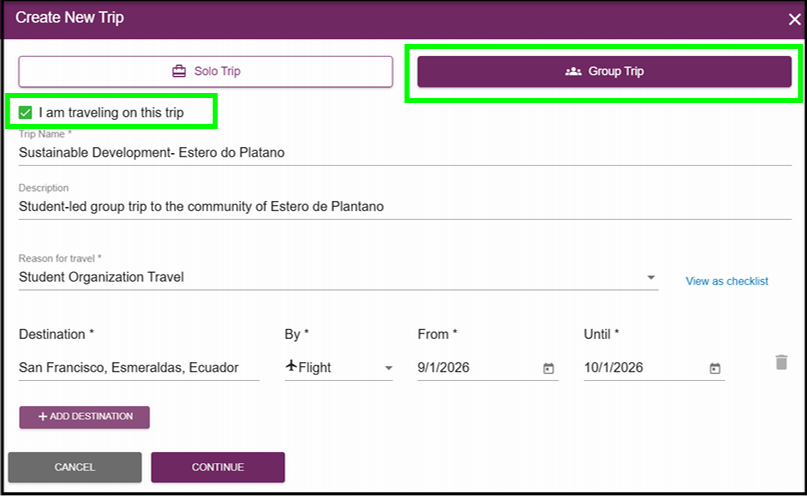
- Select Add New Trip.
- Select Group Trip in the upper-right corner.
- If you are traveling with the group, select I am traveling on this trip.
- Complete the required trip information.
- Select Continue.
Trip Organizers
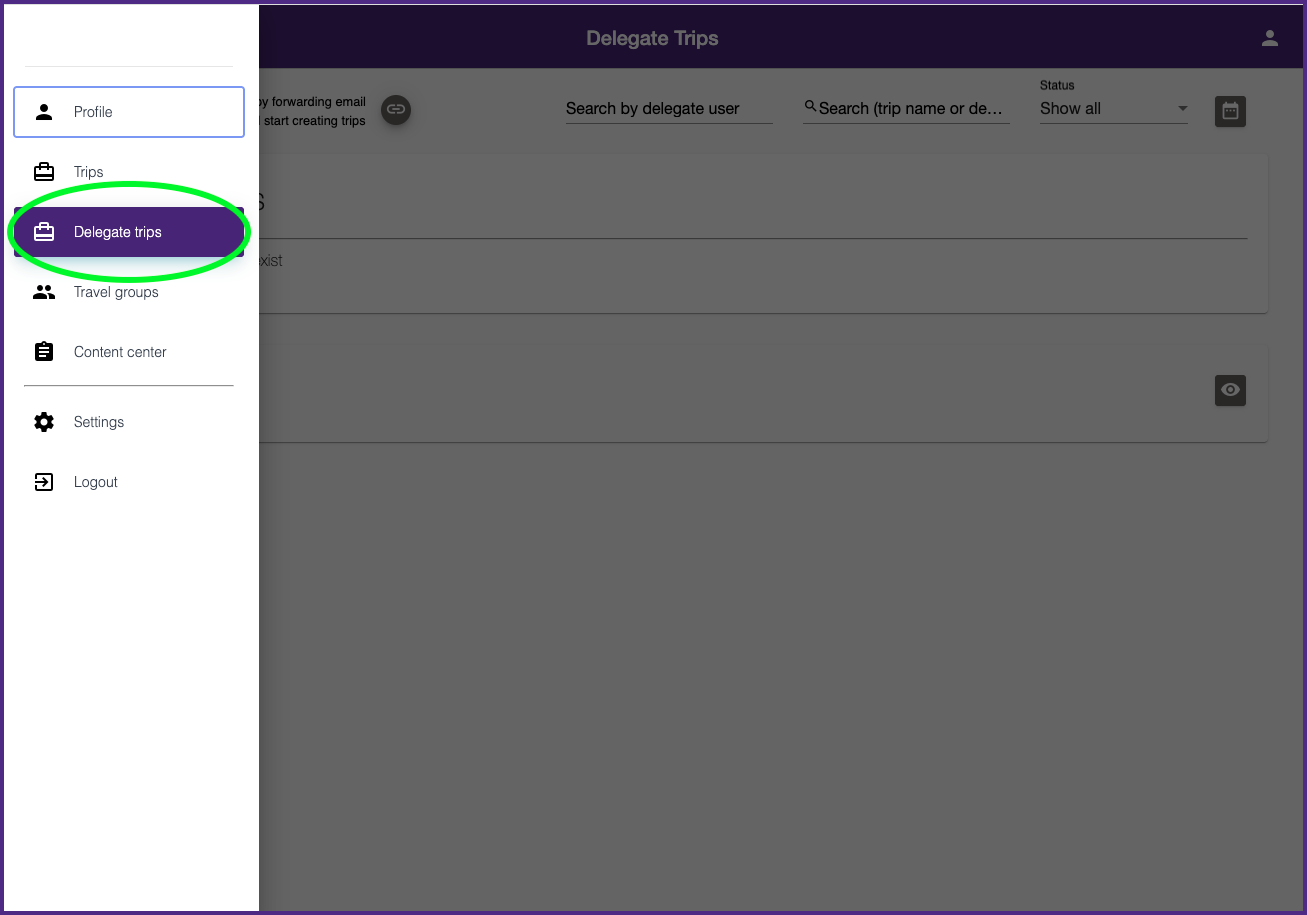
- Select the menu icon (three horizontal lines) in the upper-left corner of the screen.
- Select Delegate Trips.
- Click Add New Trip.
- Select Group Trip in the upper-right corner.
- Under Select Trip Leader, choose your trip leader.
- Complete the required trip information.
- Click Continue.
Add Group Members
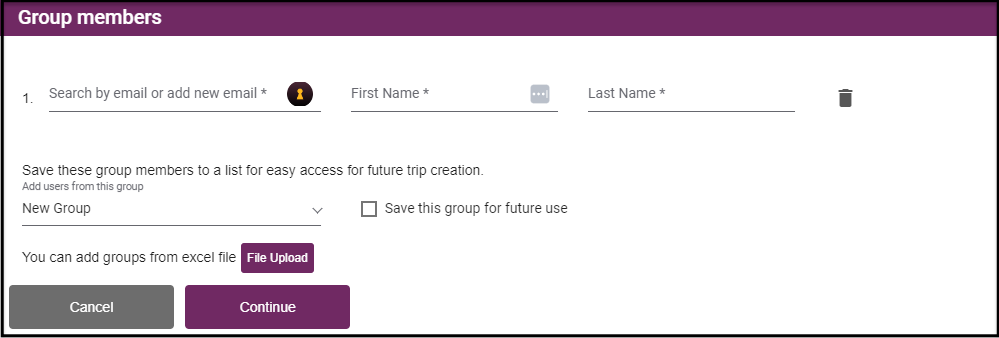
Select Add Group Now to open the Group Members window.
Group members can be added by:
- uploading the completed ITR Group Spreadsheet, or
- entering group members manually.
Review Traveler Matches
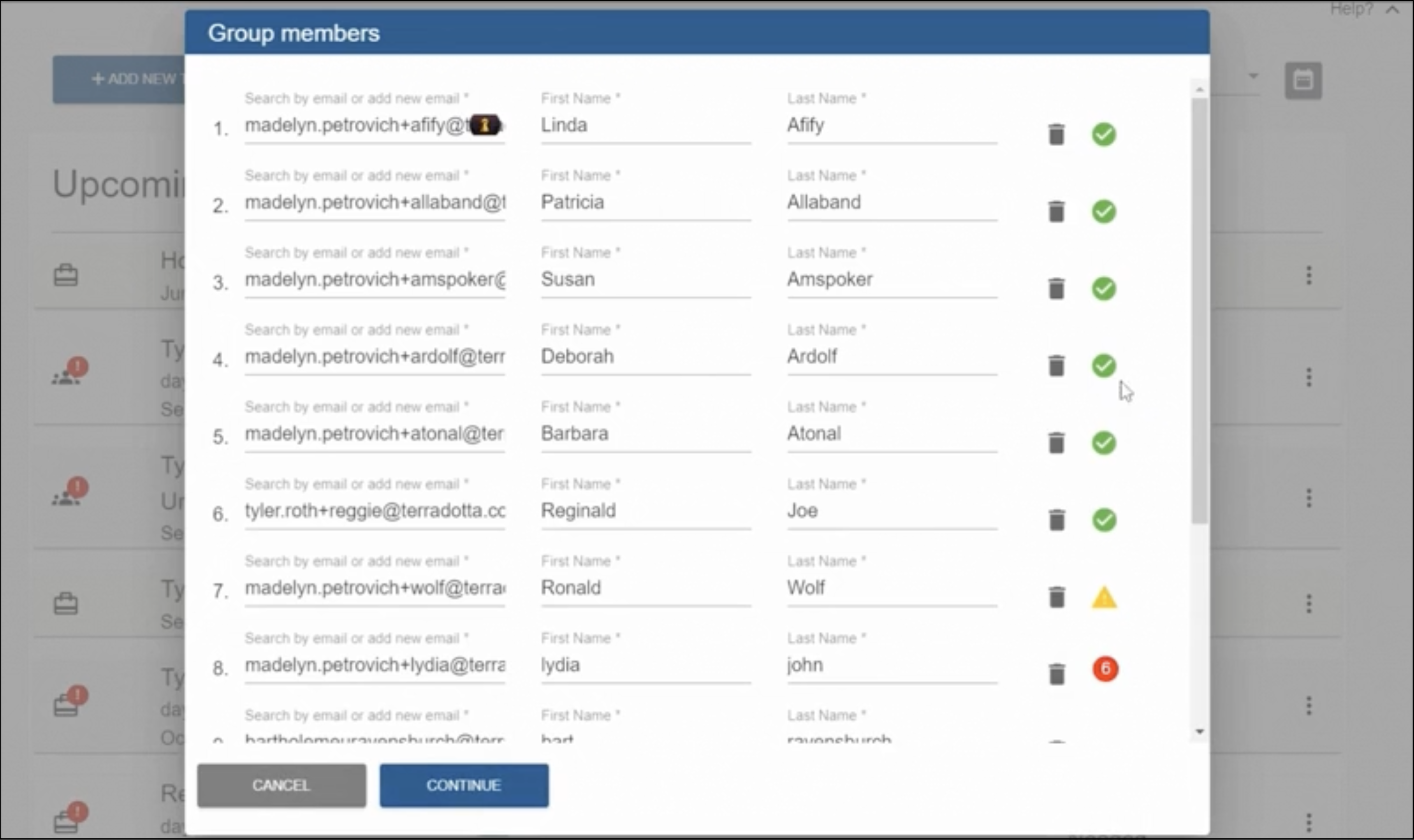
The ITR uses nightly data from CAESAR to match traveler records.
- Green or yellow icon
= confirmed or acceptable match; no action needed. - Red icon
= no exact match found. Click the red icon to review possible matches and select the correct traveler. If no match is found, click “I did not find the traveler” and manually search for the traveler. If the traveler still cannot be located, delete traveler using trash can icon and send the traveler's name and email to globalsafety@northwestern.edu for investigation. - No icon displayed
= no match found. Double-check the traveler’s email address and re-enter it.
Before continuing, confirm that all group members are correctly matched and that no red icons remain.
Create Member Trips
- Click Save and Create Member Trips.
- When prompted, select Yes, apply to all.
Important: If you do not click Save and Create Member Trips, only the Trip Leader's trip will be created and group members will not be added.
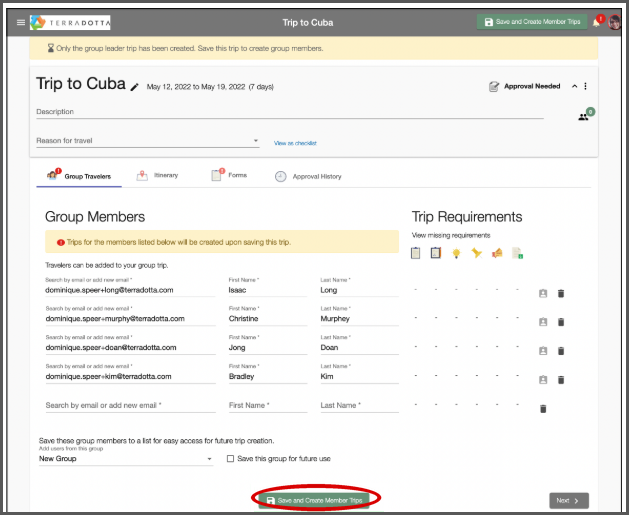
Once completed:
- Individual trips will be created for all group members.
- Group members will receive an email prompting them to log in to the ITR and complete their pre-departure requirements.
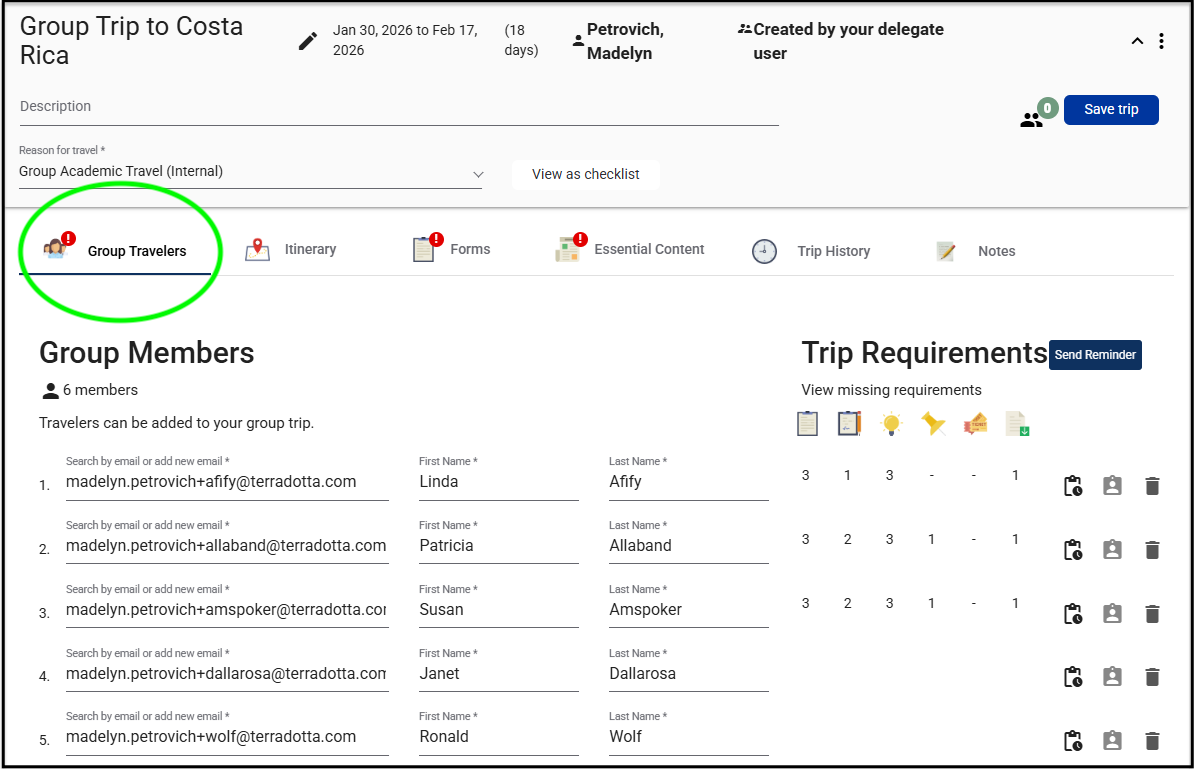
To verify that all group members were added successfully, open the Group Travelers tab within the Trip Leader's trip.
Monitor Trip Requirements
Trip leaders and trip organizers can monitor group members progress through their Group Travelers tab.
Within this tab, you can:
- add or delete group members
- monitor trip requirements
- send reminder emails
Creating Trips FAQs
Need help?
Watch this short video from the platform host on creating a group trip.
If you or your travelers have trouble accessing the travel registry, consult the Travel Registry FAQs.
For help with technical issues creating group trips, email globalsafety@northwestern.edu. If possible, include screenshots of any error messages. OGSS will respond as soon as possible during normal business hours.